
UnblurPhoto
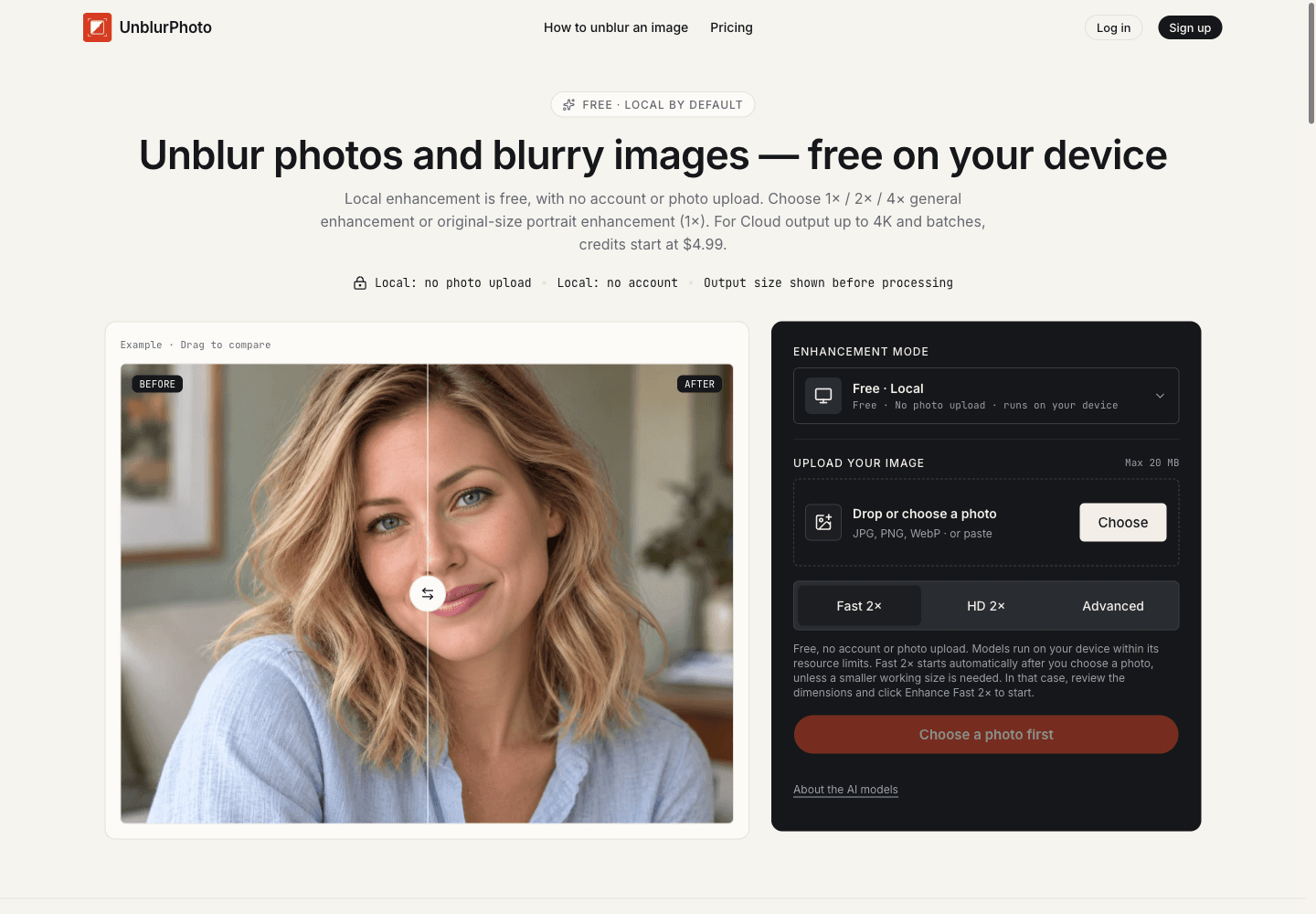
Enhance blurry photos locally for free, or use Cloud processing for more options.
- All time
- — views
- — clicks
- Last 30 days
- — views
- — clicks
Loading activity…
What is UnblurPhoto?
Key Features
Free local processing: Try photo enhancement on your device without an account, photo upload, watermark, daily processing quota, or Cloud credit charge.
Multiple local enhancement options: Choose general enhancement at 1×, 2×, or 4×, or Portrait enhancement at the original image size.
Optional Cloud modes: Choose from clear enhancement, face enhancement, and motion deblur. Cloud processing uses credits and uploads the original when a job starts.
Output-size choices: Select a supported Cloud output size up to 4K where available, and review the planned dimensions before processing.
Batch processing: Process multiple photos in a Cloud batch within the product’s stated file-count and size limits.
Before-and-after comparison: Compare an original image with an enhanced result before deciding whether to download it.
Use Cases
- Try enhancing a soft or compressed photo locally without uploading it.
- Compare local general and portrait enhancement with the original photo.
- Choose a Cloud output size for a photo while reviewing dimensions and credit cost.
- Process a Cloud photo batch within the service’s file-count and size limits.
How to Use UnblurPhoto
- 1Open UnblurPhoto and choose a photo.
- 2Choose Free · Local to process on your device, or review the Cloud options if you need a Cloud-specific mode or output size.
- 3Check the selected mode, working size, planned output dimensions, and—if using Cloud—the credit cost.
- 4Start processing and compare the result with the original.
- 5Download the result only if it is useful for your needs, and keep an untouched copy of the original.
Best For
FAQ
Is UnblurPhoto free?
Its Local processing is free and does not use Cloud credits. Cloud processing is paid and uses credits. One-time credit packs start at $4.99, and monthly subscriptions start at $9.90 per month. Check the current pricing page for allowances and expiry terms.
Do I need to create an account?
The Local option does not require an account. Cloud processing requires an account, uploads the original photo when you start a job, and uses paid credits.
Are photos uploaded when using Local processing?
No. Local processing runs on your device and does not upload the photo. Starting a Cloud job uploads the original for processing.
Can UnblurPhoto recover a completely blurry photo?
Not reliably. If important detail was not captured or has been lost, AI may estimate plausible details rather than recover the original. Results depend on the source image.
How do Local size limits, 4×, and Cloud 4K differ?
Local has no daily processing quota, but device memory, browser support, and image size can limit processing. Large photos may need a smaller working image. Local 4× multiplies those working dimensions; Cloud 4K refers to a target output size. Check the working and final dimensions before processing.
Quick Info

Related Tools
More active tools in AI Tools.
Banana AI
Banana AI is a free AI image and video generation platform. Transform photos, create cinematic videos, apply styles, background removal, and restoration—fast and easy.

BG Remove Pro
Remove backgrounds from images instantly with our free AI tool. Get perfect transparent backgrounds in seconds - no signup required. Supports JPG, PNG, WebP formats.

Editimg AI
Transform your images with Editimg AI, the most advanced ai image editor. Edit photos online with AI-powered tools for style transfer, background removal, object replacement, and more.

Professional Headshot AI
Professional Headshot AI helps users create realistic AI professional headshots from uploaded photos. The workflow is built for producing studio-quality profile images that still look like the person, with style selection and fast turnaround.

