How to Change a Product Photo Background with Restyla
Change a product photo background with Restyla. Follow a worked mug example, copy the prompts, and check lettering, color, shape, and edges before publishing.
A cleaner background can make a product photo easier to use. But if the edit also changes the item's color, lettering, or shape, you need to catch that before publishing it.
This guide walks through a background replacement in Restyla, using a black mug photographed on a cluttered desk. You can copy the prompts, inspect the actual outputs, and follow the same checks with your own photo.
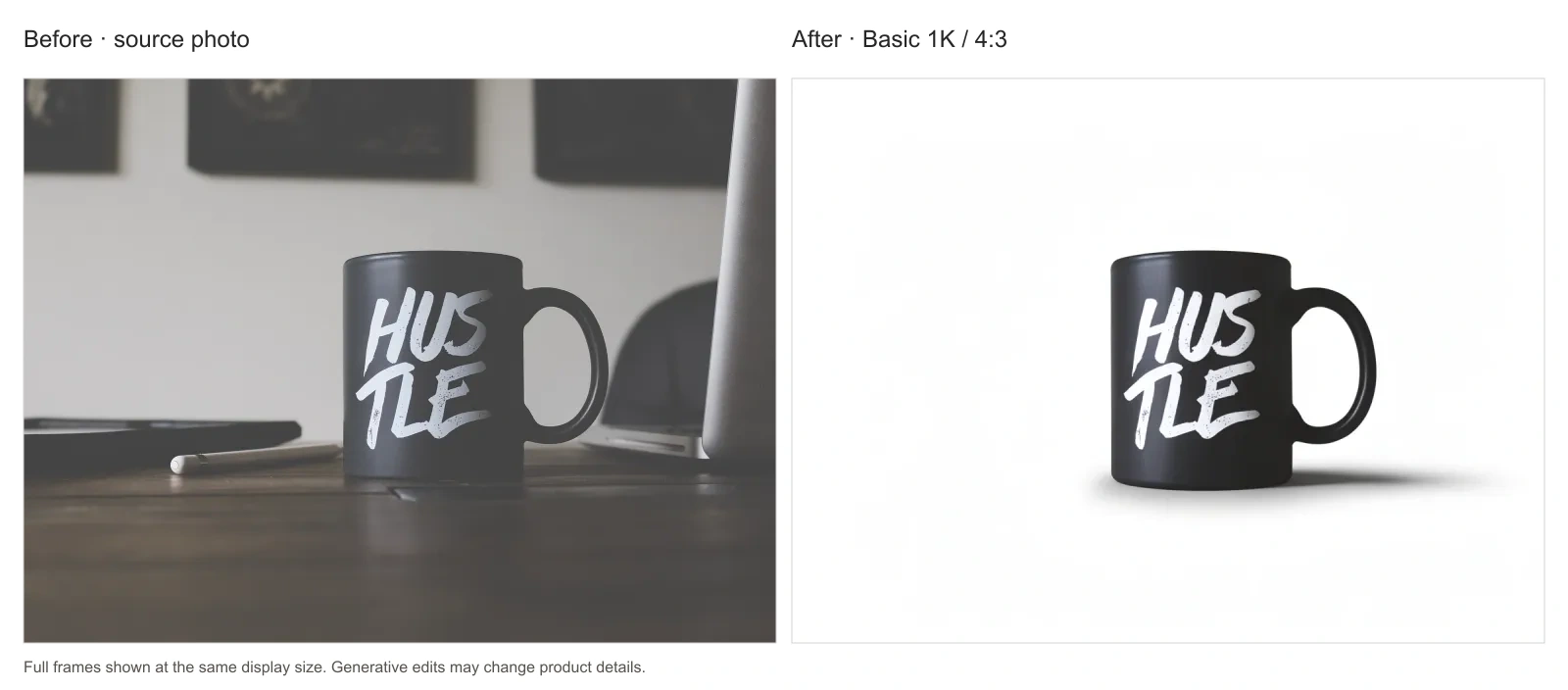
The source and Basic output shown at the same display size. The laptop, tablet, pen, desk, and wall have been replaced with a white studio setting and shadow. Select any image to inspect it at full size.
Disclosure: JustSimple Tools and Restyla share the same owner. This is a first-party tutorial. The example edits were generated on November 9, 2026, through direct API calls to the model integrations currently mapped to Restyla's Basic and Advanced tiers. We checked the upload and settings interface on the live website; the screenshot shows that setup, rather than a completed website generation. This example does not establish a success rate or verify the complete website generation flow.
Before you start
Use a photo you own or have permission to edit and publish. Keep the original file so you can compare it with the output.
Restyla accepts JPG, PNG, and WEBP files up to 10 MB. Choose a photo with:
- The entire product visible.
- A clear outline and readable lettering or branding.
- Lighting that shows the product's color and finish.
- Enough separation between the item and nearby objects.
Instructions such as “keep the product unchanged” are requests, not a lock on the original pixels. Restyla's FAQ acknowledges that AI may still alter product details.
Step 1: Choose a source and identify what must stay
Our example uses Rise And Grind, a photograph by Garrhet Sampson, available through Wikimedia Commons under CC0. We cropped the photo to 4:3 and resized it to 1536 × 1152 before editing. The mug itself was not retouched in this preparation.
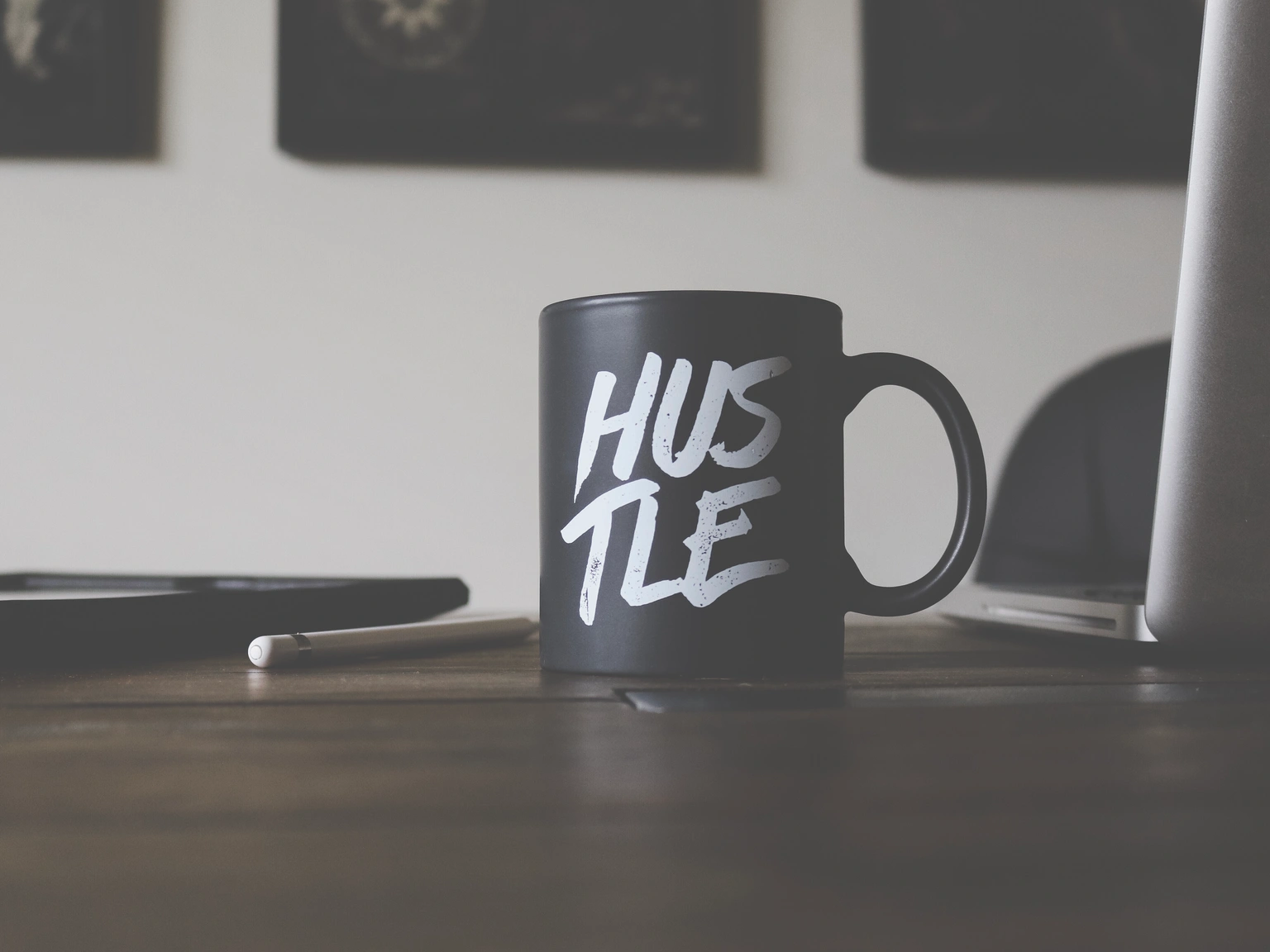
Source: Garrhet Sampson, “Rise And Grind,” CC0. Cropped and resized for this example.
For this mug, the important details are its dark finish, cylindrical body, right-side handle, and white HUSTLE lettering split across two lines. The surrounding office objects should disappear.
Make a similar checklist for your own item. A bottle might need checks for its cap, label wording, and transparency; a bag might need checks for seams, fasteners, and strap attachments.
Step 2: Upload the photo and choose Product Background
Open Restyla and find Source image. Drag in your photo or click to select it.
Choose Product Background under the prompt field. At the time of our interface check, the preset reads:
Place this product on a clean white studio background with soft shadow, keep the product exactly the same
Review the prompt before generating. If the photo contains several objects, specify which one is the product and which ones should be removed.
Step 3: Make the preservation instructions specific
For the mug example, we replaced the preset text with this prompt:
Replace only the background with a clean white studio background.

Keep the black mug in the same position and at the same camera angle.

Preserve its original color, shape, proportions, matte finish, handle, and the exact white HUSTLE lettering.

Remove the laptop, tablet, pen, desk and wall from the scene.

Add a subtle, realistic contact shadow beneath the mug.

Do not add props, duplicate the mug, crop it, or redesign the lettering.
Adapt the product description to what is actually visible. Avoid asking for packaging redesign, a new camera angle, or a “more luxurious” product in the same first attempt. Each extra request introduces another change to inspect.
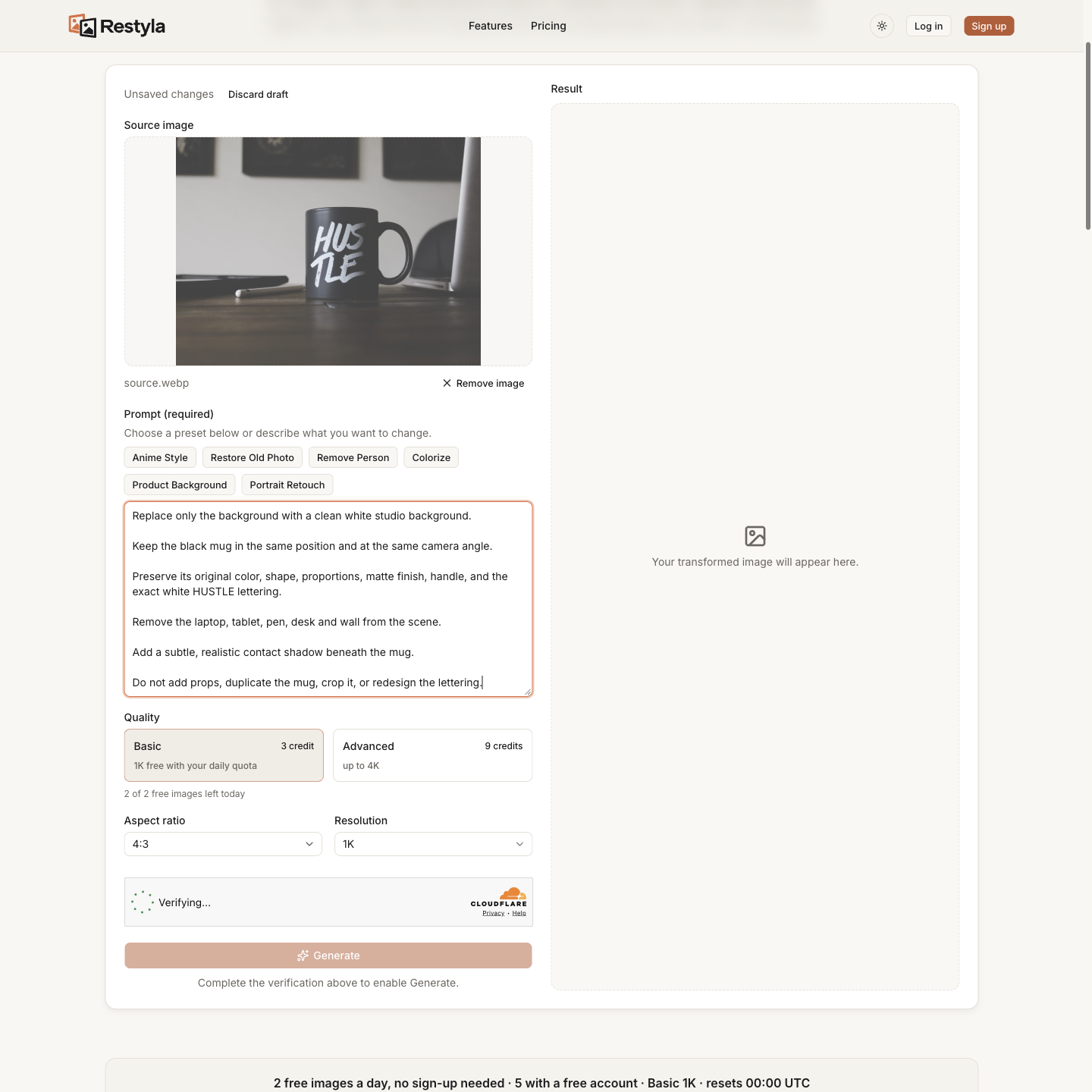
Live website setup captured on November 9, 2026: Basic, 4:3, 1K. Verification was still pending and Generate had not been submitted. The images below were generated separately through the corresponding model integrations using the recorded source and prompts.
Step 4: Choose settings and generate
Review Quality, Aspect ratio, and Resolution:
- Start with Basic and 1K if an available daily free allowance meets your needs.
- Match the source ratio where possible. For this prepared source, choose 4:3.
- Check the allowance or credit cost shown for your selection.
- Complete any verification or sign-in request shown by the interface.
- Click Generate, then save the result for inspection.
Do not assume that every resolution is included in the free allowance. Restyla's Basic 2K and Advanced options require credits.
For our Basic white-background example, the corresponding model integration returned a 1152 × 864 image. We kept that first output and did not regenerate it to select a more flattering example.
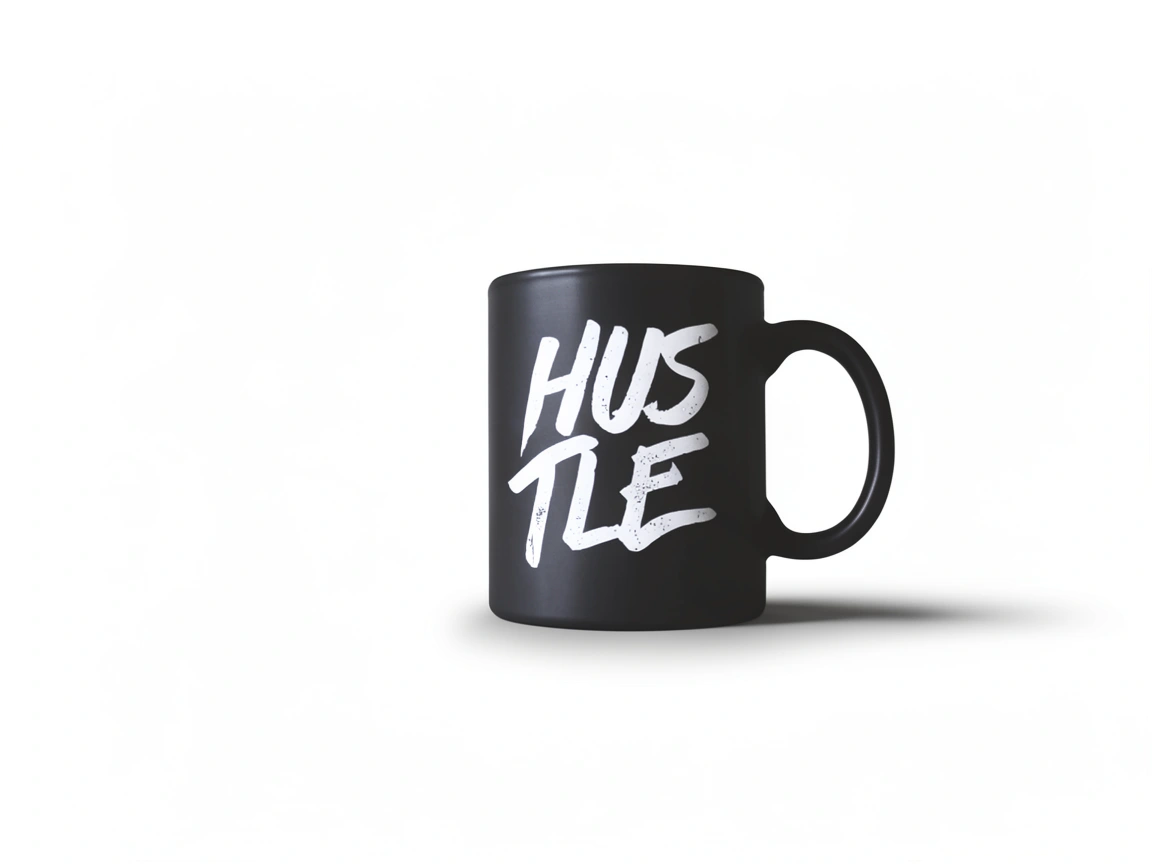
Basic, 1K, requested ratio 4:3; actual output 1152 × 864. No manual product retouching was applied. The displayed file is a WebP export of the generated PNG.
Step 5: Inspect the product, not just the background
Open the source and output at comparable displayed sizes, then inspect the lettering, handle, edges, and base more closely.
In this example, the white background and removal of office objects worked. The mug stayed in roughly the same part of the frame, and the HUSTLE wording remained readable across two lines. The edit also changed the product's appearance:
| Check | What we observed in the Basic output |
|---|---|
| Color and finish | The mug appears darker, with stronger contrast than in the source. The lettering also looks brighter. |
| Lettering | The word remains readable, but small distressed marks and stroke details differ. This is not an unchanged copy of the print. |
| Shape and edges | The right-side handle and overall silhouette remain recognizable. The lower contour is more rounded and appears to extend slightly lower in the frame. |
| Background and shadow | The desk and office objects are gone. A new soft shadow extends to the right of the mug. |
| Added objects and framing | We did not observe an extra mug or added accessories, and the whole mug remains visible. |
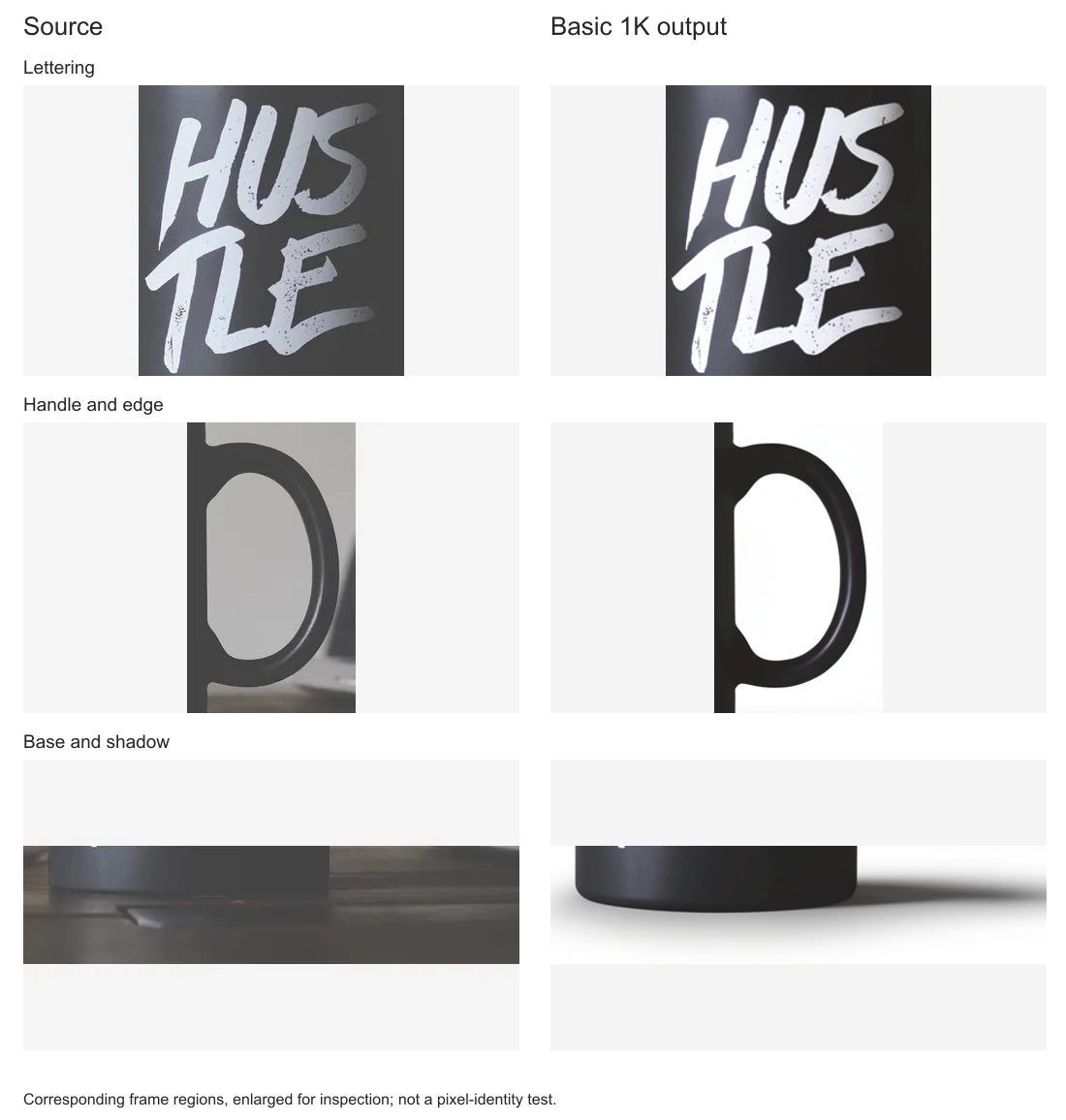
Corresponding image regions enlarged for inspection. These crops make visible changes easier to compare; they are not a pixel-identity test.
Check color and material
Ask whether the result still represents the same product variant. A darker finish, a stronger reflection, or smoother fabric can change what a buyer expects to receive.
The mug's darker appearance is a reason to review this output before using it as a sales image. A pleasing studio treatment does not establish accurate color.
Read every important word
Read labels rather than checking only their general layout. Compare letters, symbols, spacing, and the shape of a logo.
The HUSTLE wording survived in this example, but that does not establish that another label, small ingredient list, or serial number will survive. If the source text is unreadable, generated lettering is not a reliable reconstruction.
Inspect the outline and shadow
Look for halos, missing thin parts, remaining pieces of the old background, and shadows that make the item appear to float. Pay particular attention to handles, straps, transparent edges, and openings.
The handle opening in our output has the new background behind it, but the changed lower contour still needs review. Inspecting the broad silhouette alone would miss that difference.
Step 6: Keep, retry, or use a method with more control
Keep a result only if its changes are acceptable for the intended use. For this mug, the output demonstrates background replacement, but we would not treat it as proof of exact product preservation.
If your prompt needs adjustment, retry from the original source, changing one instruction at a time. Repeatedly editing an already altered product can make comparison harder.
If important lettering, color, or geometry keeps changing, consider isolating the original product on a separate layer and placing it over a new background. You may still need to refine the edges and shadow, but you gain more direct control over which parts are edited.
What changed with Advanced?
We also ran the same source and white-background prompt once through the integration mapped to Advanced, requesting 2K and 4:3. It returned 2400 × 1792 pixels; the returned dimensions are not an exact 4:3 ratio.
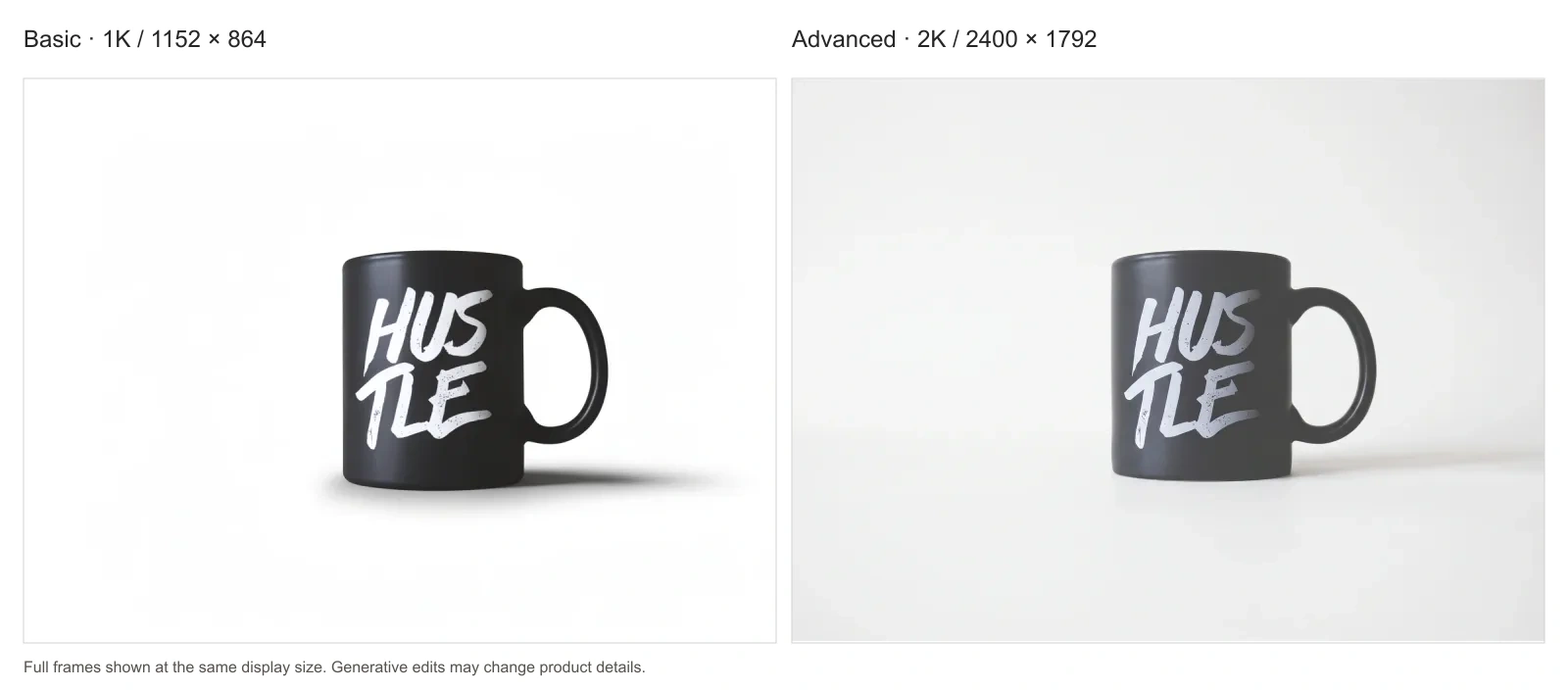
Basic: 1152 × 864. Advanced: 2400 × 1792. Both full frames are fitted into equal display areas without stretching.
In this pair, the Advanced result has a softer shadow and a more muted finish that looks closer to the source than the darker Basic result. Its HUSTLE wording is readable, but it still needs the same detail checks. This single pair is not enough to establish that one tier consistently preserves products better.
Try a second background from the original
Once you have inspected the white-background result, return to the original source and try another setting.
We used this prompt for a neutral tabletop scene:
Replace the background with a minimal light-gray studio setting and a neutral tabletop.

Keep the black mug in the same position and at the same camera angle.

Preserve its original color, shape, proportions, matte finish, handle, and the exact white HUSTLE lettering.

Remove the laptop, tablet, pen, desk and wall from the scene.

Use soft, neutral lighting and a subtle contact shadow.

Do not add accessories, props, extra products, or redesign the lettering.
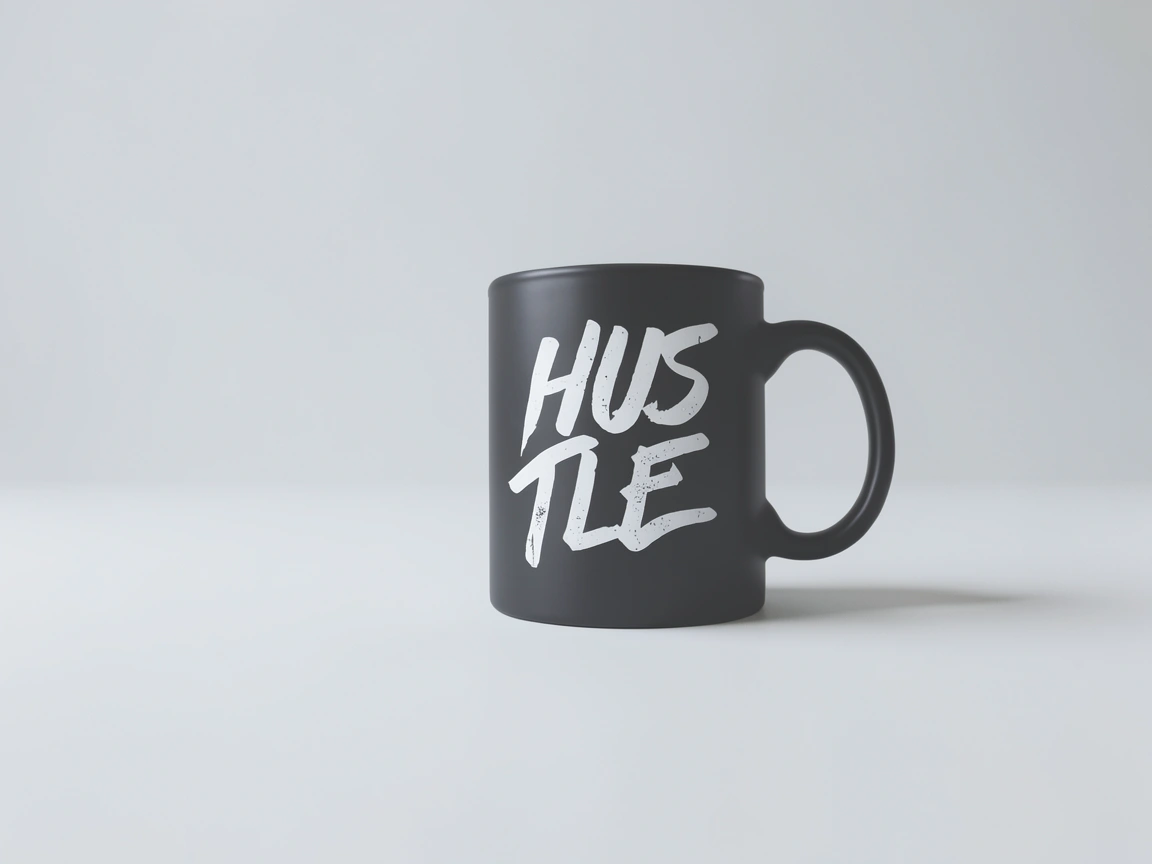
A separate Basic 1K generation from the original source, not a further edit of the white-background output. Actual output: 1152 × 864.
The second result removes the office objects and introduces a light-gray setting. The tabletop and backdrop blend into a soft gradient rather than forming a strongly defined horizon. The mug again looks darker than the source, so changing the scene did not remove the need to check the product.
Related tools and guides
Explore more AI tools and design tools in the directory. If you are preparing graphics for a store or website, our SVG vs PNG guide explains when to use each image format.
Quick answers
Can I change the background without changing the product?
That is the goal, but a generative edit does not guarantee it. Our examples kept the mug recognizable while changing aspects of its appearance. Specify what must stay, then inspect the actual output.
Is there a free option?
On November 9, 2026, Restyla's interface listed up to two free Basic 1K images per day for guests and up to five for verified accounts. Allowances reset at 00:00 UTC, do not roll over, and are subject to regional, abuse-prevention, and daily budget limits. Check the current interface before generating.
Does a white background mean the image is ready for a marketplace?
No. A generated studio background can contain gradients and shadows, and the product itself may have changed. Check the exported file against the destination's current image requirements for the category and placement where you plan to use it.
Can I use the result commercially?
Restyla's current FAQ allows commercial use subject to rights in the source photo and the selected provider's terms. Review its Terms of Service, the destination's requirements, and whether the image accurately represents the item. Permission to use an output does not establish its accuracy.
Should I download the result immediately?
Save accepted outputs locally, together with the original and prompt. Restyla's current FAQ lists 24-hour availability for free uploads and results, and 30 days for paid sources and results in My works. Keep your own copy before those windows expire.
Start with one photo
Use one clear source, ask for one background change, and compare the product before publishing. In our mug example, removing the desk clutter was straightforward to see; the more useful lesson came from checking what else changed.
Interface and example images checked on November 9, 2026. Three independent generations were made: Basic white background, Basic gray setting, and Advanced white background. Outputs were not manually retouched; web exports, comparison layouts, and detail crops were prepared for this article. Results, features, limits, and availability may change.